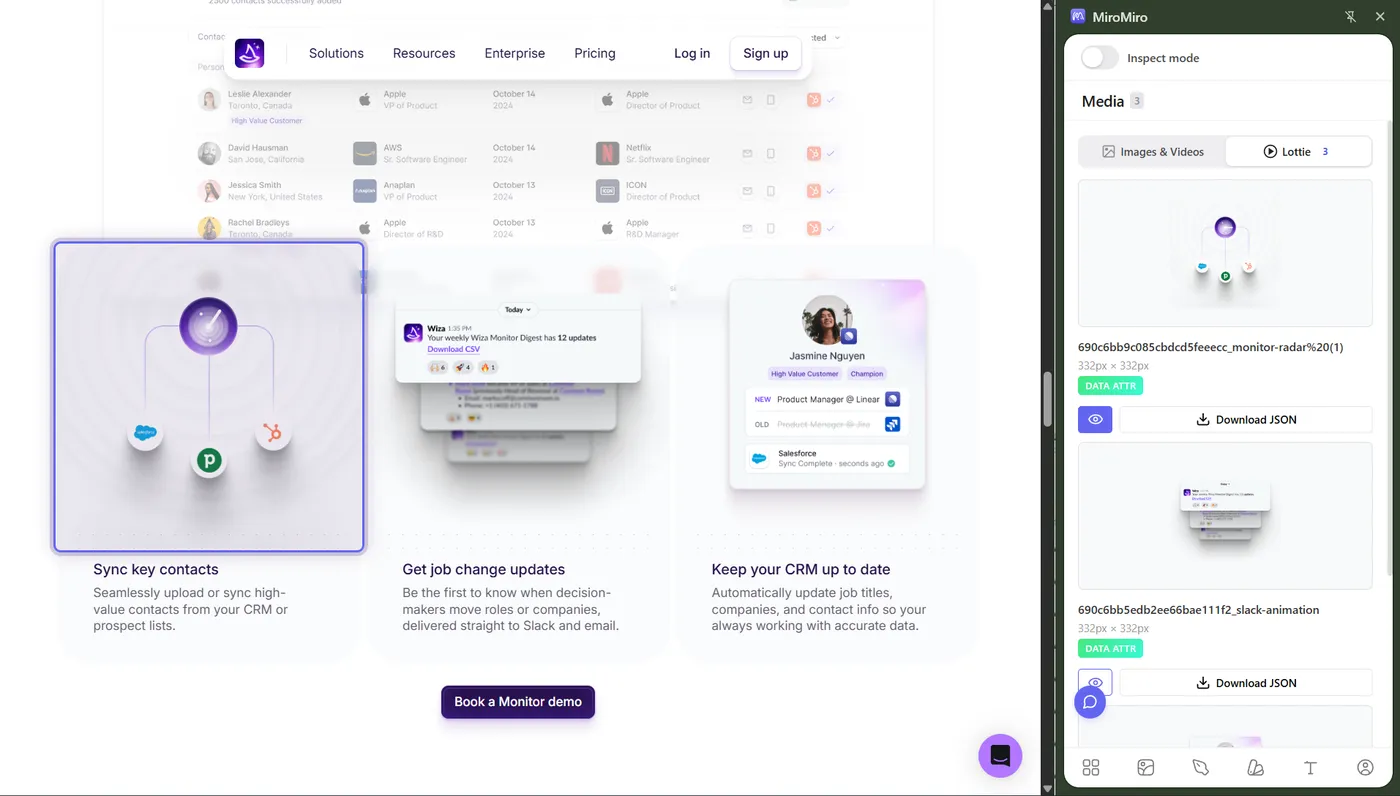
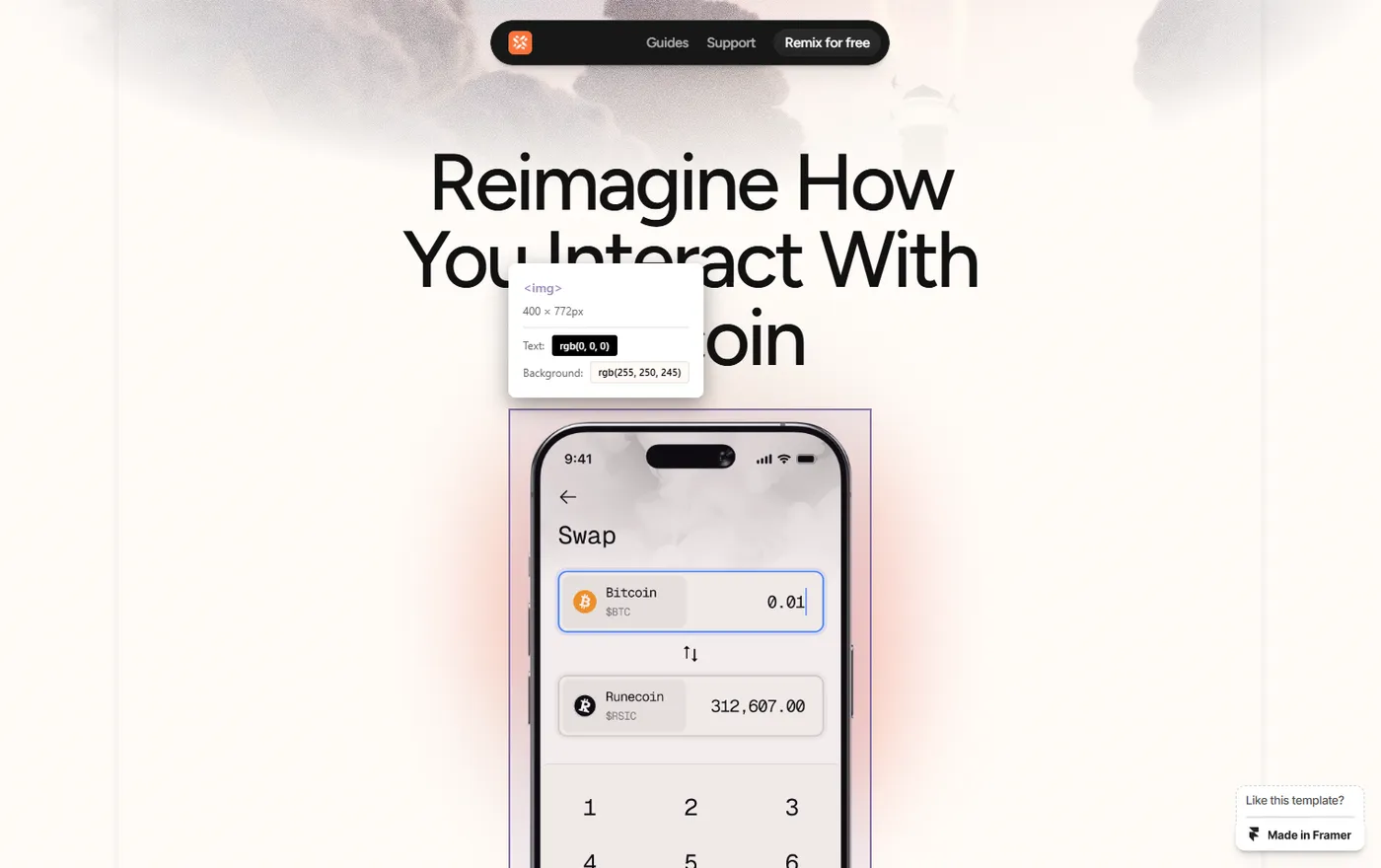
Framer templates are packed with beautiful mockups, illustrations, and photography, but actually saving those images? That's where it gets frustrating.
Here are three methods to extract images from any Framer template or website, from the fastest one-click approach to a manual DevTools fallback.
Why Framer Sites Make Image Extraction Difficult
Framer generates optimized, production-ready websites. That's great for performance, but it creates headaches when you try to save images:
- Right-click is blocked or unreliable - Many Framer templates use layered elements that intercept right-click. You end up saving a transparent overlay instead of the actual image.
- Images are lazy-loaded - Framer loads images as you scroll, so off-screen images may not exist in the DOM yet.
- Next-gen formats - Framer often serves WebP or AVIF versions, which might not be what you need.
- CSS background images - Some visuals are set as CSS backgrounds, which don't appear in a standard right-click menu at all.
- Responsive sizing - The
srcsetattribute means there are multiple resolutions. Right-clicking often gives you the smallest one.
The result: "Save Image As" gives you a tiny thumbnail, the wrong file, or nothing at all.
Method 1: Point, Hover, and Download (Fastest)
The fastest way to grab an image is to use the MiroMiro Inspector. It works just like a design tool. Hover over any element to see what's there.
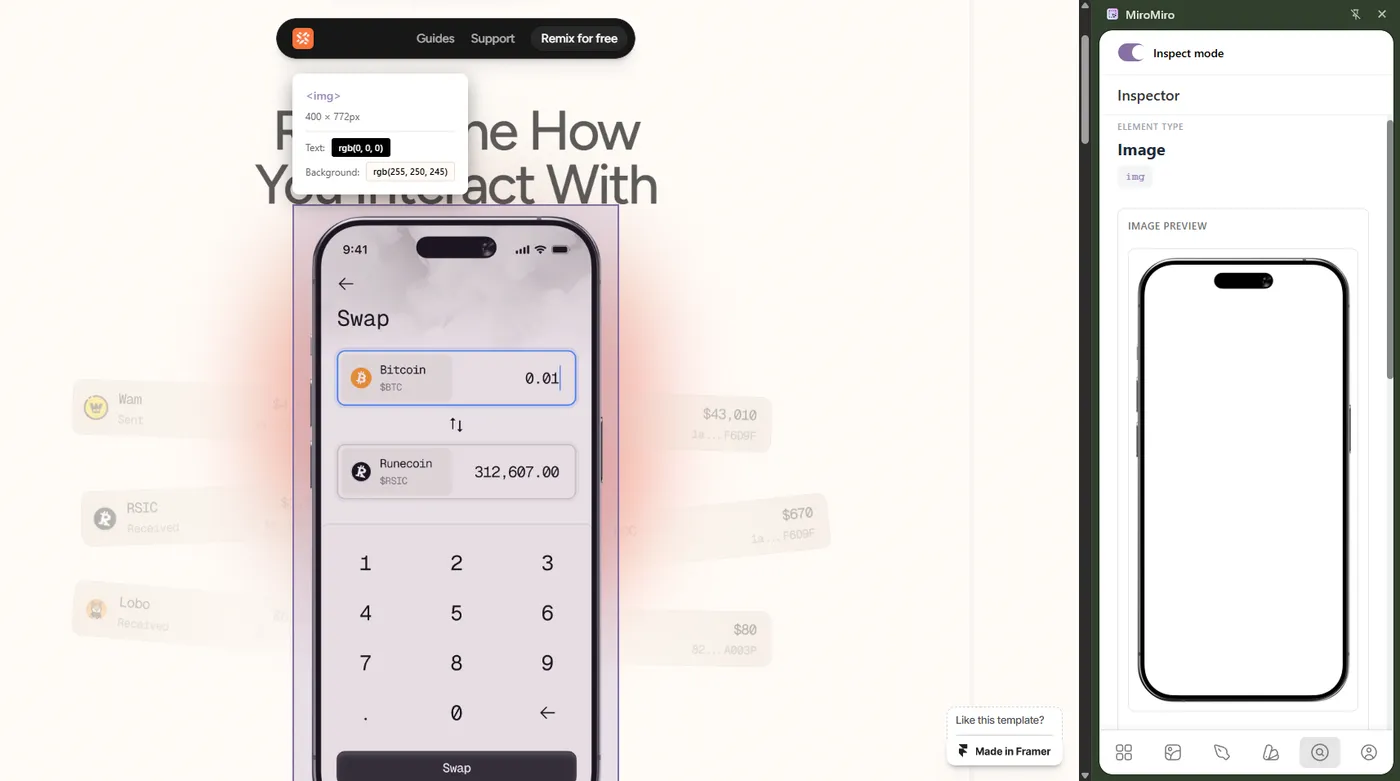
Just hover to see the resolution and format instantly.
How to use the Inspector:
- Install MiroMiro - Get the free Chrome extension.
- Activate Inspector Mode - Open the extension and click the Inspector Mode icon. MiroMiro will now highlight every image as you move your mouse.
- Hover to Preview - Simply hover over any image to see a high-quality preview, its dimensions, and file format.
- Download - Click the download button to save the asset at its full resolution.
MiroMiro detects images regardless of how Framer renders them, including <img> tags, CSS backgrounds, inline SVGs, and lazy-loaded content. When we tested this on a handful of Framer marketplace templates, every hero and gallery image pulled in at full resolution, even the ones buried behind scroll interactions.
Do this on any live website
MiroMiro inspects any site in your browser - CSS, assets, colors, and clean code, one click away.
Method 2: The Asset Tab (Bulk Export)
Don't feel like hunting for images one by one? Switch to the Assets Tab to see a clean gallery of everything MiroMiro found on the page.
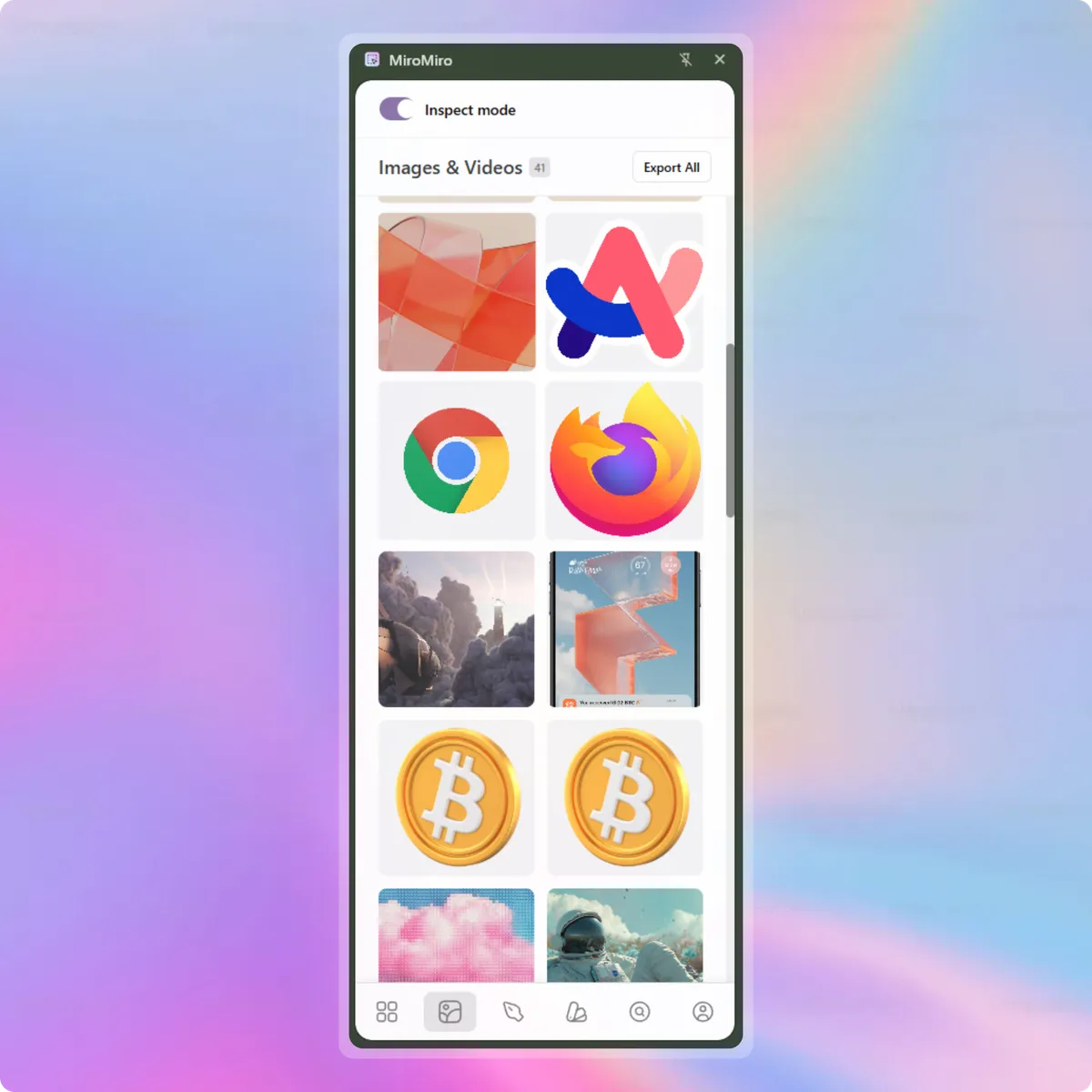
View every image and icon in one organized list.
The Assets Tab is ideal when you want to audit all the visuals on a Framer template:
- Full gallery view - See every image on the page in one organized grid, including images that are off-screen or hidden behind interactions.
- One-click save - Download any asset from the gallery without needing to scroll to its location on the page.
- Filter by type - Focus on just PNGs, JPGs, SVGs, or WebP files depending on what you need.
- Size information - See dimensions and file sizes at a glance so you can grab the highest quality version.
This is especially useful on Framer template showcase pages where you want to collect multiple mockups, hero images, or icon sets at once.
Method 3: DevTools Fallback (No Extension)
If you can't install a browser extension, you can still extract images manually using Chrome DevTools. It's slower, but it works:
For standard images:
- Right-click on the page and select Inspect (or press
Ctrl+Shift+I) - In the Elements panel, use
Ctrl+Fto search for<img - Look for the
srcorsrcsetattribute on the image element - Copy the URL and open it in a new tab to download
For CSS background images:
- Inspect the element that has the background image
- In the Styles panel, look for
background-image: url(...) - Click the URL to preview, then right-click to save
For lazy-loaded images:
- Open the Network tab in DevTools
- Filter by Img to show only image requests
- Scroll through the Framer page. Images will appear in the Network tab as they load
- Right-click any image entry and select Open in new tab to download
When to Extract Images from Framer
Not sure if image extraction is the right approach? Here are the most common use cases:
Building a design reference library
Designers often browse Framer templates for inspiration. Extracting hero images, mockup styles, and illustration treatments helps you build a reference library for future projects. Much more useful than a screenshot.
Client presentations and mood boards
When pitching a design direction to a client, real mockups from polished Framer templates communicate ideas better than wireframes. Extract the visuals you need to build a compelling mood board.
Auditing a Framer site you've inherited
If you're taking over a client's Framer site, extracting all images gives you a quick inventory of the visual assets in use. You can spot missing alt text, oversized files, or inconsistent photography styles. If you also need the markup behind those visuals, our website-to-code workflow pulls the rendered HTML and CSS alongside the assets.
Competitive research
Studying how competitors present their product through mockups, screenshots, and illustrations helps you understand their visual strategy. Extract, don't screenshot. You get higher quality assets to analyze.
FAQ
Is it legal to extract images from Framer templates?
Extracting images for personal reference, learning, and mood boards is generally fine. Using someone else's images in your own commercial projects without permission is not. Always check the template's license and respect copyright. When in doubt, use extracted images as inspiration to create your own original assets.
What image formats does MiroMiro extract?
MiroMiro extracts images in their original format: PNG, JPG, WebP, AVIF, SVG, and GIF. You get the exact file the website serves, at the highest available resolution.
Can I extract SVGs and icons from Framer templates too?
Yes. MiroMiro detects inline SVGs, SVG files loaded via <img> tags, and icon fonts. You can copy SVGs directly to your clipboard and paste them into Figma or your code editor.
Does this work on password-protected Framer sites?
MiroMiro runs in your browser, so if you can see the page, MiroMiro can extract from it. For password-protected or login-gated Framer sites, just log in first, then activate MiroMiro.
What about Framer's built-in image optimization?
Framer automatically converts and resizes images for performance. MiroMiro extracts the version that's currently rendered in the browser. If you need the original uncompressed file, you'll need to get that from the Framer project owner directly.
Does this work on other website builders too?
Absolutely. MiroMiro works on any website, including Framer, Webflow, WordPress, Squarespace, custom-built sites, and everything in between. The extraction methods are the same regardless of the platform.
Ready to start extracting images from Framer templates?
Keep Reading
- Design Tools That Export Clean HTML and CSS: The honest 2026 ranking of every tool that claims clean code export - and why live extraction wins
- How to Download Lottie Animations from Any Website: Extract Lottie JSON files from any site
- Asset Extractor: Bulk download images, SVGs, videos, and Lottie animations
ワークフローを高速化する準備はできましたか?
MiroMiroで毎週何時間も節約している20,000人以上のデザイナーと開発者に参加しましょう。
€49
€69 now
€89
€149
Soraia · MiroMiroのファウンダー
Soraiaは、20,000人以上のデザイナーや開発者がライブサイトからクリーンなコード、デザイントークン、アセットを抽出するために使うChrome拡張機能、MiroMiroを開発しています。これらのガイドは、Stripe、Linear、Vercelといった実際のサイトでこのワークフローを毎日テストした経験から生まれています。
Xでフォロー言葉だけでは信じられないなら
MiroMiroが自分に合うか迷っていますか?
お気に入りのAIに聞いてみましょう。ボタンを押すだけで、あらゆるWebサイトからコード・デザイントークン・アセットを抽出する性能について教えてくれます。