You've probably typed some version of this into Google: "what design tool exports clean HTML and CSS?"
The honest answer: none of them, really. Figma, Sketch, Adobe XD, even newer tools like Anima and Locofy. They all claim clean exports. They all ship code that needs real work before you can use it in production.
But there's a better question: why are you going design-file → code at all?
If you're trying to recreate something you already saw on a real website, you're adding a step that doesn't need to exist. The cleanest HTML and CSS is the code the browser is already rendering.
Here's the full landscape in 2026, honestly ranked.
Why design-file exports are messy (and always will be)
Design tools render pixels. Browsers render semantic markup. The gap between those two is where "clean export" goes to die.
A button in Figma is a rectangle with text inside it. The exporter doesn't know it's a button. It doesn't know whether that section should be a <nav>, a <header>, or a <section>. It sees rectangles, text, and auto-layout rules, and has to guess structure from visual proximity.
The result is the same every time:
- Wrapped in unnecessary divs
- Absolute positioning everywhere (because that's what Figma thinks in)
- Inline styles or unscoped CSS classes
- No semantic HTML - no
<button>,<nav>,<article>, just<div>after<div> - Font weights, colors, and spacing rounded to the nearest approximation
You can polish this. You can't skip it.
The 2026 comparison: every tool that claims to export clean code
Design-file → code tools
Figma Dev Mode - The default option. Shows CSS, iOS, Android snippets for any selected layer. Good for grabbing individual values (colors, spacing, font sizes). The full component HTML/CSS export is unusable. It's essentially inline-styled absolute-positioned divs.
Anima - Plugin for Figma/Sketch/Adobe XD. Exports React, Vue, or HTML. Cleaner than Figma's native output but still produces component code that feels AI-generated: class names like group-1, rectangle-5, and a lot of wrapper divs. Usable as a starting point, not as shippable code.
Locofy.ai - Adds AI on top of the Figma export step. The output is noticeably cleaner than Anima, and it attempts semantic tags. Still requires a review pass. Best for teams already deep in the Figma → React pipeline who want to save hours, not perfect code.
Framer - Technically exports HTML/CSS, but its output is tightly coupled to Framer's runtime. If you're not hosting on Framer, exporting is more painful than it looks.
Webflow - Similar story. Webflow's export is more portable than Framer's, but you're still getting Webflow's class naming and structure, not code you'd write by hand.
Live-website → code tools
This is the category most people overlook. Instead of starting from a design file, you start from a real, shipped website - and extract the code the browser is already rendering.
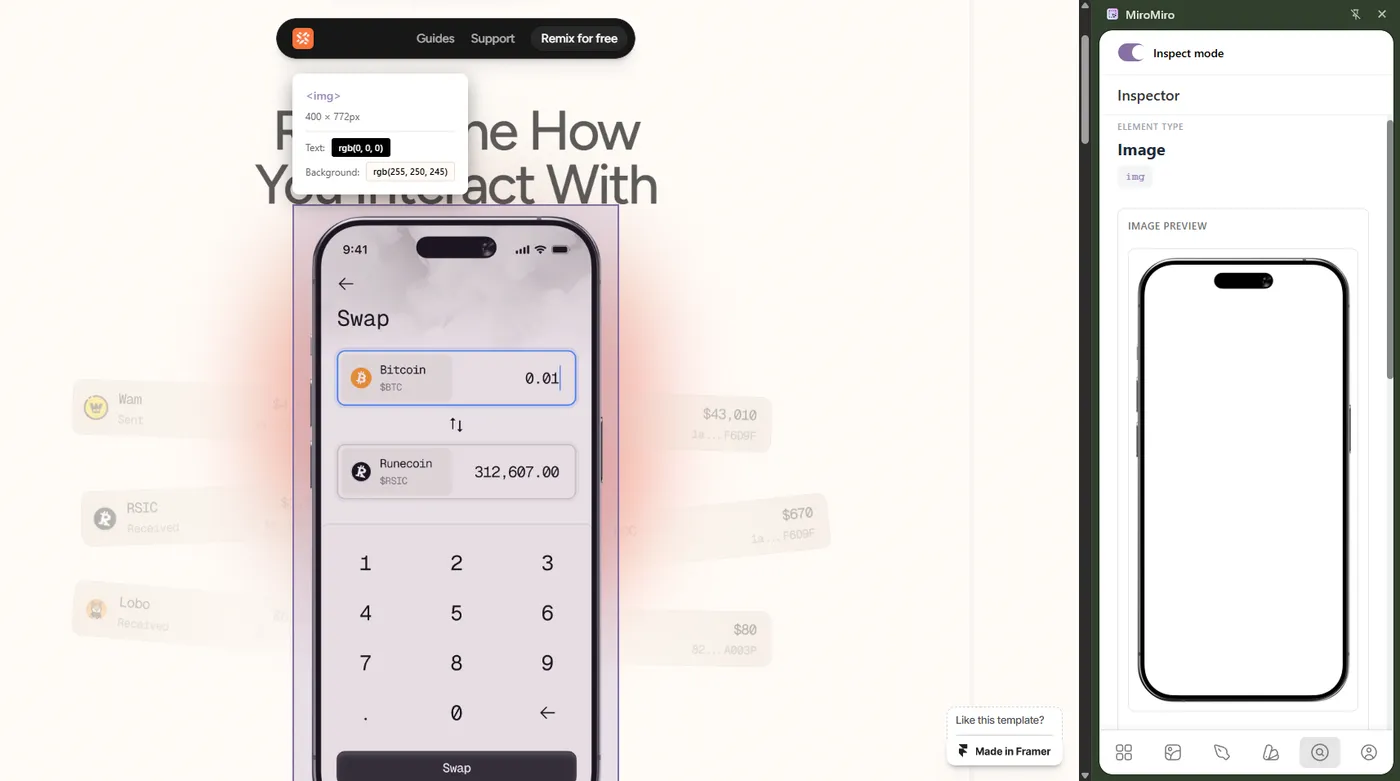
MiroMiro - Chrome extension. Hover any element on any live site, click, get production-ready Tailwind HTML (or vanilla HTML/CSS). Because the code is already semantic markup the browser ran, you skip the "guess the structure" problem that every design-file exporter has.
Browser DevTools - Free, built-in, and miserable. You can copy outerHTML and scrape computed styles, but you get cryptic minified class names (.sc-d4e1f2, .css-1x9kl7), 400 lines of unused CSS per element, and no Tailwind conversion. Technically possible; rarely worth it.
Do this on any live website
MiroMiro inspects any site in your browser - CSS, assets, colors, and clean code, one click away.
Why live-website extraction wins for most cases
If what you want is "code that looks like the thing I saw on a real website," live-website extraction is the shortest path:
- The semantic structure is already there (browsers enforce it)
- The CSS values are real, not rounded approximations
- You skip the design-file middleman entirely
- You can grab anything from any site, not just files you have access to
The only case where design-file export wins: when the component you want hasn't been built yet and exists only as a mockup.
- Extract clean Tailwind HTML from any live site
- CSS Inspector: copy computed styles from any element
- SVG Extractor: grab icons and graphics as code
- Font Detector: identify any typography
- Lottie Downloader: pull animation JSON files
Skip the monthly bill - the lifetime math
If you do live-website extraction more than a few times a month, lifetime pays for itself fast:
The lifetime math
€49
€69 now
€89
€149
The €49 launch price has ended. Lifetime is €69 until the current spots go , then it’s €89.
Your AI/design stack, monthly
- Cursor€20/mo
- Claude Pro€20/mo
- v0€20/mo
- Figma Dev Mode€15/mo
- MiroMiro Pro (monthly)€9/mo
Every year. Forever. Until you cancel.
MiroMiro lifetime - one-time
Paid once. Used forever. No renewals.
- Pays for itself in 8 months vs Pro monthly
- €39 saved in year 1 alone
- One less monthly bill in your stack, permanently
How to get clean HTML/CSS from any live website
The workflow is three steps:
Step 1: Install a live-website extractor
Install MiroMiro from the Chrome Web Store. You'll get a toolbar icon that works on any site.
Step 2: Hover the element you want
Open any site you like the look of - Linear, Stripe, Vercel, a pricing page, a hero section, whatever. Click the extension, hover the component, and the overlay highlights it with dimensions and a live preview.
Step 3: Export as clean code
Click once. MiroMiro gives you clean Tailwind HTML (default) or vanilla HTML/CSS. Class names match what the site actually uses. Spacing, colors, and typography are the real values, not rounded.
Paste straight into Cursor, Claude, v0, Lovable, or your own codebase. No cleanup pass needed.
Here's the export-to-code feature in action:
For the full walkthrough of the inspector (including the live preview overlay, dimension labels, and the Tailwind / vanilla CSS toggle) see the Inspect & Export feature page.
How to prompt your AI after extraction
Pasting clean Tailwind HTML into Cursor or Claude is the first half. The second half is what you say next - and a good prompt is the difference between a generic copy-paste and a section that actually fits your brand.
The pattern that works: tell the AI where the code came from, what you want kept, and what you want changed.
Here's a prompt template you can copy:
This is a hero / pricing / navbar section I extracted from site name using MiroMiro. I want to use it on our website, but adapted to our brand:
- Use our brand colors from
tailwind.config.ts(primary, secondary, accent)- Use our typography - headings in your font, body in your font
- Replace the copy with: your headline, subheadline, CTA text
- Keep the layout, spacing, and animation timing intact
- Match the rest of our app's component conventions (file pattern, e.g., kebab-case filenames, default export)
Output as a single React / Vue / Svelte component.
Why this works:
- "I extracted this from X" frames the input correctly. The AI knows it's real, working code, not a sketch to interpret. It refactors instead of rebuilds.
- "Keep the layout, spacing, and animation" prevents the AI from helpfully "improving" the part you specifically liked.
- "Match our conventions" plus a path reference gives Cursor real context to read. Without that, you get a component that works in isolation but doesn't fit.
- "Replace the copy with X" is more reliable than asking the AI to invent copy that fits your brand voice. Copy is the one part of design where AI guessing is most obvious.
The mental model: you're not asking the AI to design something. You're handing it a working reference and asking it to translate it into your codebase's dialect. That's a job AI is genuinely good at.
For longer sessions, like a multi-page redesign or an entire landing page rebuild, extract several sections from different sites, paste them all into one Cursor conversation, and prompt: "Use these as references for the visual language of our new landing page. Build the home page using a hero like the first one, a pricing section like the second, and a footer like the third. Use our brand from tailwind.config.ts." You're effectively building a custom design system, in code, in 10 minutes.
And if you'd rather skip the copy-paste step entirely: the same extraction engine is available as a design-to-code API, with an MCP server so Cursor or Claude Code can pull a section's real code from a URL mid-task - no extension, no clipboard.
When to use which tool
- Building from a Figma mockup that doesn't exist anywhere else yet: Anima or Locofy. Expect a cleanup pass.
- Recreating something you saw on a real website: Live extraction with MiroMiro. Fastest, cleanest path.
- Automating extraction in a pipeline or coding agent: The MiroMiro API - one GET request returns a section as Tailwind, React, or Vue, plus the design tokens it uses.
- Grabbing a single CSS value (color, shadow, font size): Figma Dev Mode or browser DevTools - both work fine for one-off values.
- Exporting a full Webflow/Framer site you built: Use their native export, knowing you'll be tied to their conventions.
The honest takeaway
No design tool exports truly clean HTML and CSS directly from a design file. They all need a cleanup pass, because they're reverse-engineering semantic structure from visual layers.
If the component you want already exists on a live website (which it almost always does) extract it from there instead. The code is already clean. The browser did the hard work.
That's the shortcut nobody tells you about.
Ready to speed up your workflow?
Join 20,000+ designers and developers who save hours every week with MiroMiro.
Soraia · Founder of MiroMiro
Soraia builds MiroMiro, a Chrome extension used by 20,000+ designers and developers to extract clean code, design tokens, and assets from live websites. These guides come from testing the workflow daily on real sites like Stripe, Linear, and Vercel.
Follow on XDon't take our word for it
Not sure if MiroMiro is right for you?
Let your favorite AI do the thinking. Click a button and see what it says about extracting code, design tokens, and assets from any website.