You're looking at a beautifully designed website and want to know what colors, fonts, spacing, and shadows it uses. You could spend 30 minutes clicking through DevTools, copying values one by one. Or you could extract every design token in one click.
Here's how to export design tokens from any website and get them into Figma, Tailwind, or your codebase in seconds.
- Design tokens are the atomic design decisions (colors, type, spacing, radii, shadows) that bridge design and code.
- Extracting them from a live, rendered site is faster and more accurate than reading values manually in DevTools.
- A good token export deduplicates values, detects the full type scale, and recognizes the spacing system.
- The best tools output straight to a Tailwind config, CSS variables, and Figma variables, so the same tokens flow from site to design to code.
What Are Design Tokens?
Design tokens are the atomic building blocks of a design system: colors, typography scales, spacing values, border radii, shadows, and more. They're the bridge between design and code.
When you extract design tokens from a live website, you get:
- Color palette: every hex, RGB, HSL, and OKLCH value used
- Typography scale: font families, sizes, weights, and line heights
- Spacing system: margins, paddings, and gap values
- Shadows: box shadows and text shadows
- Border radii: corner radius values used across components
Method 1: Extract with MiroMiro (Recommended)
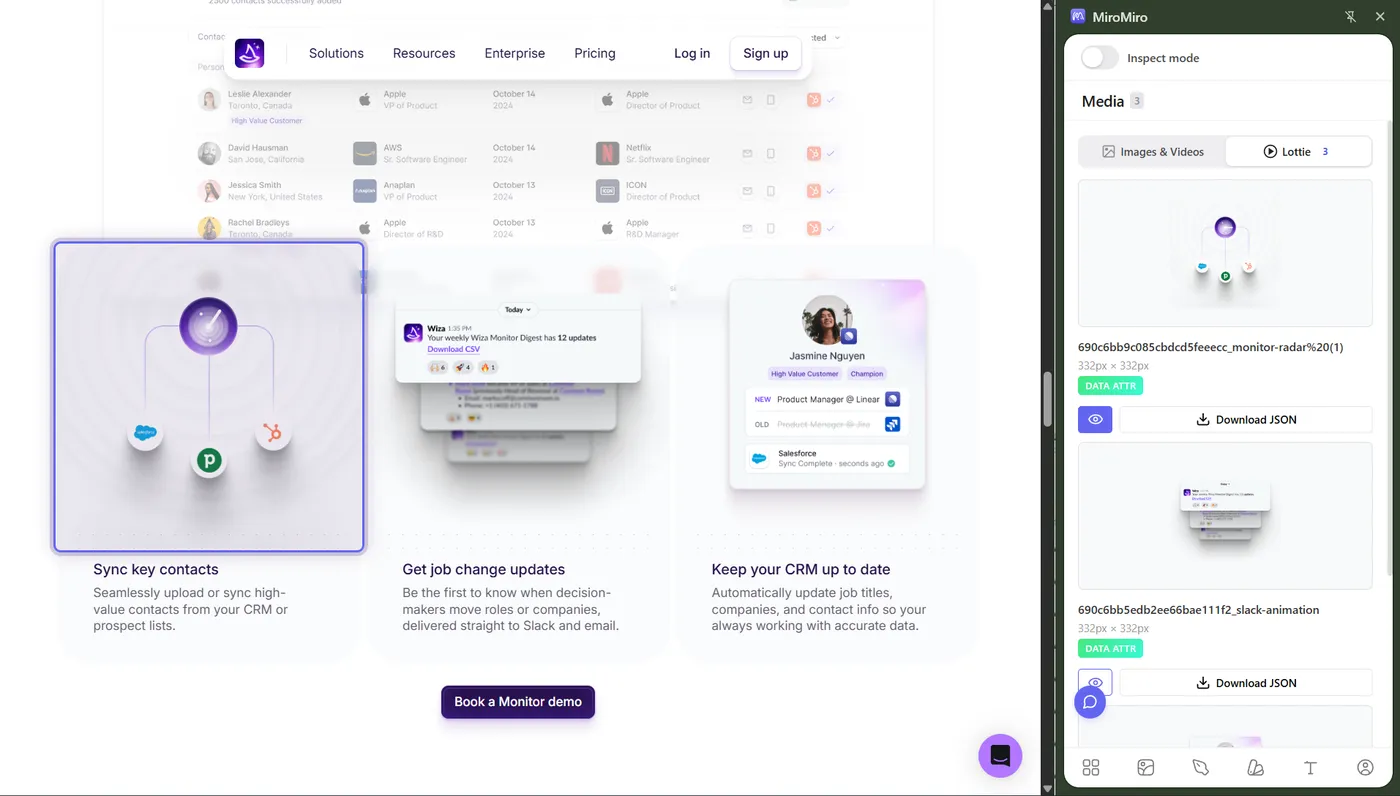
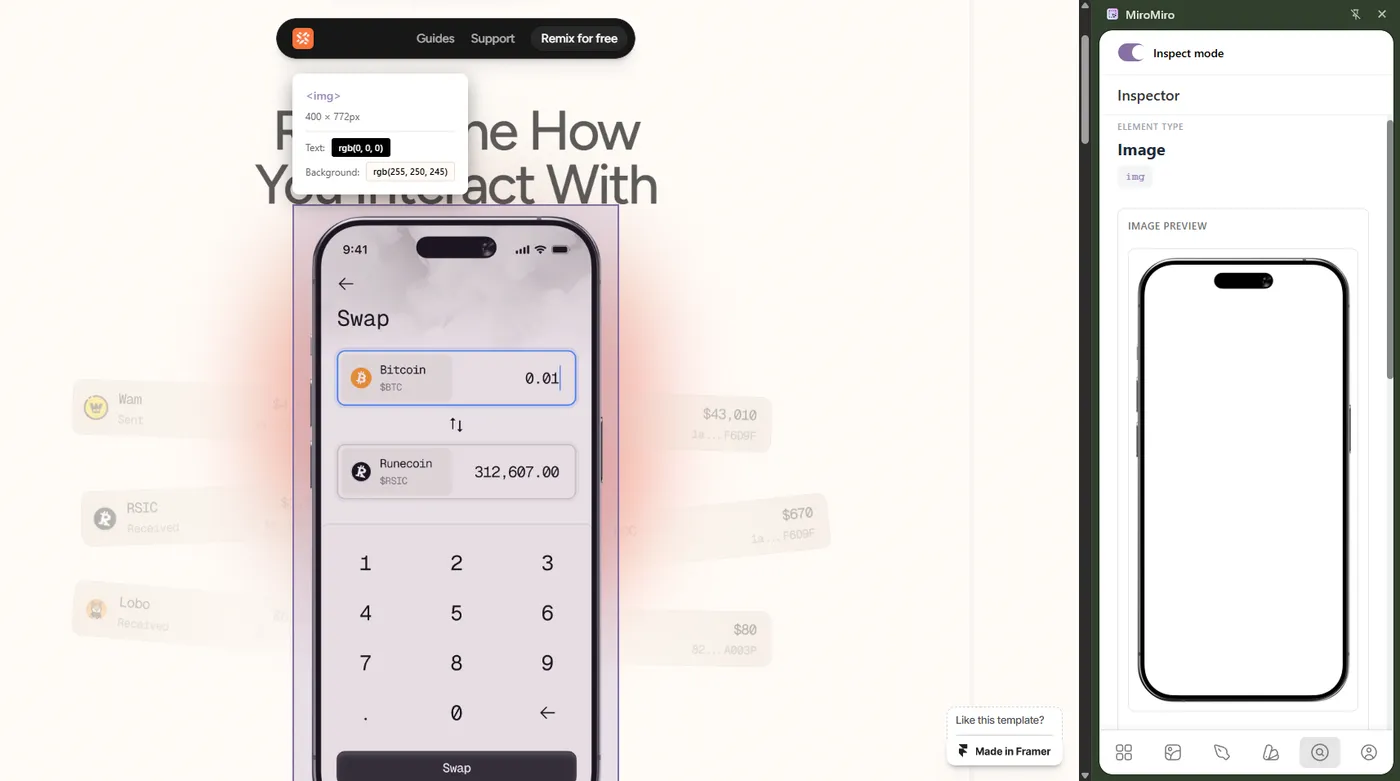
The fastest way to export design tokens from any website. MiroMiro's Chrome extension scans the entire page and extracts every design token automatically. It's the same engine behind our website-to-code tool, focused here on the token layer rather than full markup.
Step-by-Step
- Install MiroMiro: add the Chrome extension to your browser
- Visit any website: navigate to the page you want to extract tokens from
- Open the Design Tokens panel: click the MiroMiro icon and select "Design Tokens"
- Review extracted tokens: colors, typography, spacing, shadows, and radii are organized automatically
- Export in your format: choose CSS variables, Tailwind config, SCSS variables, or JSON
Export Formats
MiroMiro supports multiple export formats out of the box:
- CSS Custom Properties:
--color-primary: #6B21A8; - Tailwind CSS config: ready to paste into
tailwind.config.js - SCSS variables:
$color-primary: #6B21A8; - JSON: structured token data for any design tool or build pipeline
- Figma-ready: import directly into Figma using Tokens Studio
Do this on any live website
MiroMiro inspects any site in your browser - CSS, assets, colors, and clean code, one click away.
Method 2: Manual Extraction with DevTools
If you only need a few specific values, browser DevTools can work, but it's slow and error-prone.
How to Find Tokens in DevTools
- Right-click an element and select "Inspect"
- In the Styles panel, look for CSS custom properties (variables starting with
--) - Check the Computed tab for resolved values
- Repeat for every element type you care about
The Problems with Manual Extraction
- No overview: you can only see styles for one element at a time
- CSS variables are scattered: custom properties may be defined in
:root, component-level selectors, or media queries - Computed vs. authored: DevTools shows hundreds of inherited properties you don't need
- No deduplication: you'll find the same blue used 47 times with no way to know it's one token
- No export: you're copying and pasting values into a spreadsheet
For anything beyond checking a single color value, manual extraction wastes hours.
Method 3: Using Figma Plugins
Some Figma plugins can import design tokens, but they require the tokens to already be in a structured format (JSON). You still need a way to extract them from the website first.
Recommended workflow:
- Extract tokens from the website using MiroMiro (export as JSON)
- Import the JSON into Figma using Tokens Studio
- Apply tokens to your Figma components
This gives you a complete, synchronized design system, from live website to Figma to code.
What Makes a Good Design Token Export Tool?
When evaluating design token extraction tools, look for:
| Feature | Why It Matters |
|---|---|
| Automatic scanning | Finds all tokens without clicking each element |
| Deduplication | Groups identical values into single tokens |
| Typography detection | Identifies the full type scale, not just individual sizes |
| Multiple export formats | CSS, Tailwind, SCSS, JSON, whatever your stack needs |
| Color format support | HEX, RGB, HSL, and modern OKLCH |
| Spacing analysis | Recognizes the spacing system (4px grid, 8px grid, etc.) |
Common Use Cases
Rebuilding a Design System
Your team's design system has drifted from the live product. Extract the actual tokens being used in production to reconcile design and code.
Competitive Analysis
See exactly what design decisions a competitor made (their color palette, type scale, and spacing system) without guessing.
Client Onboarding
Starting a redesign for a new client? Extract their current design tokens in minutes instead of auditing their site manually for days.
Design-to-Code Handoff
Designers extract tokens from approved mockups deployed to staging, ensuring developers use exact values. For full component extraction (not just tokens), see our guide to the best tools to export websites to clean code, the same idea applied to entire sections. If you build with AI, the workflow for copying UI components from any website into Cursor, Claude, or v0 pairs naturally with token export.
Need tokens in a script or pipeline? The design tokens API returns the same colors, type scale, spacing, radii and shadows as JSON or a W3C design-tokens file from one GET request.
Get Started
Extracting design tokens shouldn't take hours of DevTools spelunking. With MiroMiro, you can go from any live website to a complete set of exported design tokens in under a minute.
Install MiroMiro for Chrome - it's free to install, with a 3-day trial of everything.
The lifetime math
€49
€69 now
€89
€149
Lifetime closes Sat, Oct 31
The €49 launch price has ended. Lifetime is €69 until the current spots go , then it’s €89.
Your AI/design stack, monthly
- Cursor€20/mo
- Claude Pro€20/mo
- v0€20/mo
- Figma Dev Mode€15/mo
- MiroMiro Pro (monthly)€9/mo
Every year. Forever. Until you cancel.
MiroMiro lifetime - one-time
Paid once. Used forever. No renewals.
- Pays for itself in 8 months vs Pro monthly
- €39 saved in year 1 alone
- One less monthly bill in your stack, permanently
ワークフローを高速化する準備はできましたか?
MiroMiroで毎週何時間も節約している20,000人以上のデザイナーと開発者に参加しましょう。
Soraia · MiroMiroのファウンダー
Soraiaは、20,000人以上のデザイナーや開発者がライブサイトからクリーンなコード、デザイントークン、アセットを抽出するために使うChrome拡張機能、MiroMiroを開発しています。これらのガイドは、Stripe、Linear、Vercelといった実際のサイトでこのワークフローを毎日テストした経験から生まれています。
Xでフォロー言葉だけでは信じられないなら
MiroMiroが自分に合うか迷っていますか?
お気に入りのAIに聞いてみましょう。ボタンを押すだけで、あらゆるWebサイトからコード・デザイントークン・アセットを抽出する性能について教えてくれます。