You found the perfect icon on a website. A clean, minimal SVG. Exactly what you need.
So you open DevTools, hunt through the DOM, find the <svg> tag, copy the markup, open a code editor, save it as .svg, then import it into Figma-only to find out it came in as a flattened group with no editable paths.
There's a better way.
This guide shows you how to copy SVG icons and logos from any website directly into Figma as editable vectors-with no DevTools, no file saving, and no import step.
Why SVGs Are So Hard to Get Out of Websites
SVGs are everywhere on the web. Logos, icons, illustrations, UI decorations. But extracting them is surprisingly painful.
The right-click problem
Most browsers let you "Save Image As" for raster images, but SVGs inline in the HTML? Nothing. You right-click, and you either get no save option, or you download a .svg that's actually a PNG wrapper.
The DevTools problem
The developer-approved method: open DevTools → Elements panel → find the <svg> tag → right-click → "Copy element" → paste into a file → save as .svg → import into Figma.
That's 7 steps for a single icon. Multiply that by 20 icons in a component library you're studying, and you've wasted 30 minutes.
The Figma import problem
Even when you successfully get an SVG file and import it into Figma, it often:
- Imports as a flat image instead of vector paths
- Loses its grouped structure
- Has extra whitespace or wrapper elements
- Breaks when you try to edit colors or size
The One-Click Fix: Copy SVGs Directly into Figma
MiroMiro is a Chrome extension that detects SVGs on any webpage. Hover over any SVG and click to copy it instantly-ready to paste directly into Figma as a fully editable vector.
No file saving. No import. No DevTools.
- Hover over any SVG icon, logo, or illustration on a webpage
- Copy the clean, optimized SVG markup with one click
- Paste directly into Figma - it lands as editable vector paths
- Works on icon libraries, landing pages, SaaS apps, design showcases, anywhere
Step-by-Step: Copy SVGs from Any Website into Figma
Step 1: Install MiroMiro
Add MiroMiro from the Chrome Web Store. It takes under a minute.
Step 2: Browse to any website with SVG assets
Visit any site with SVGs you want-Heroicons, Radix Icons, Lucide, Phosphor, or any SaaS UI with custom icons.
Step 3: Hover over the SVG
MiroMiro detects SVGs on the page automatically. When you hover over one, you'll see a quick action button appear.
Step 4: Click to copy
Click the copy button. MiroMiro grabs the clean SVG markup, removes unnecessary cruft (inline styles, data- attributes, generator comments), and copies it to your clipboard.
Step 5: Paste into Figma
Switch to Figma and press Cmd+V (or Ctrl+V). Figma interprets the SVG markup directly-no file dialog, no import step. Your SVG lands as a fully editable vector frame with intact paths, groups, and colors.
Where This Workflow Really Saves Time
Icon libraries
Sites like Heroicons, Lucide, and Phosphor Icons have hundreds of icons. Even with their download buttons, you're downloading individual SVG files and importing one by one.
With MiroMiro, you hover → copy → paste into Figma. Building an icon set from multiple sources takes minutes instead of an hour.
Logos from brand pages
Competitor research, mood boards, client presentations-you often need logos from websites that don't offer a press kit download. MiroMiro grabs them directly.
UI component references
See a beautiful button or badge on a SaaS app you admire? The decorative SVG icons inside those components are extractable. Hover, copy, paste into Figma alongside your own component.
Inline SVG illustrations
Websites often use inline SVGs for hero illustrations, empty states, and decorative graphics. These are technically visible in the browser but completely inaccessible via normal right-click. MiroMiro catches them all.
The Common Problem: SVG Pastes as an Image in Figma
This is the most frustrating SVG gotcha. You paste into Figma and it shows as a bitmap-a flat, uneditable image.
Why it happens: Figma interprets SVG markup differently depending on how it's structured. Certain SVG features (filters, masks, foreignObject) cause Figma to rasterize instead of vectorize.
How MiroMiro prevents this: The extension strips incompatible SVG attributes and normalizes the markup before copying, so what lands in Figma is clean vector data that Figma can interpret as paths.
If you're copying SVGs manually from DevTools and experiencing this issue, the fix is:
- Strip
filter,mask,clip-pathreferences from the SVG - Remove any
styleblocks and replace with inlinefillattributes - Flatten complex path operations
Or just let MiroMiro handle it automatically.
Bulk SVG Export: Scan a Page for All SVGs
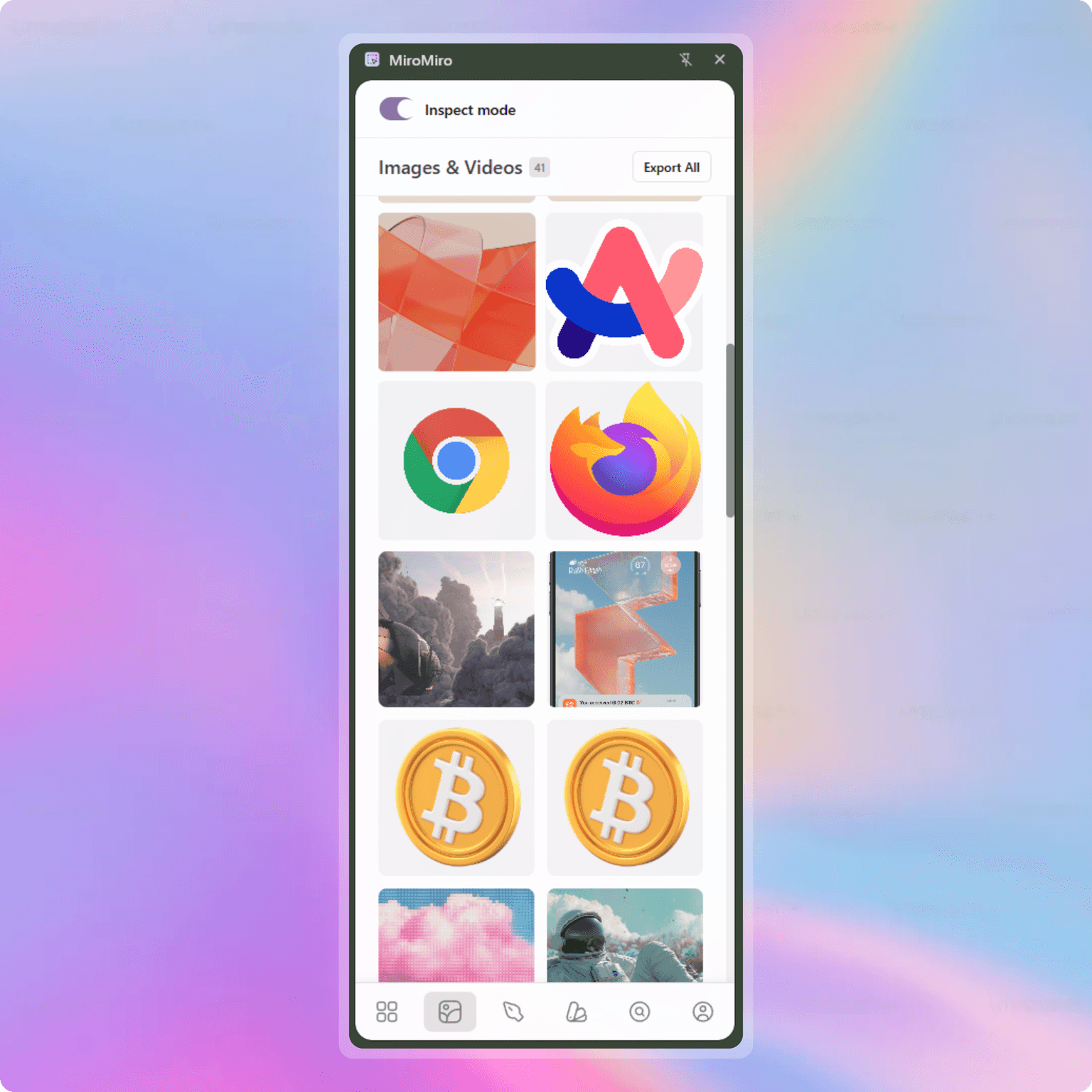
Beyond single SVG extraction, MiroMiro can scan an entire page and show you a panel with every SVG found-icons, logos, illustrations, decorations.
You can:
- Preview all SVGs found on the page
- Copy any of them individually
- Download as
.svgfiles if you need the files for an asset library
This is especially useful when:
- You're auditing a design system you inherited
- You're building an icon library from existing brand assets
- You're researching how a product's icon set is structured
SVG Extraction vs. Screenshot: Why It Matters
You might wonder: why not just screenshot the SVG?
| Method | Editable in Figma | Scales Cleanly | Fast? |
|---|---|---|---|
| Screenshot | ❌ Bitmap | ❌ Gets blurry | Fast |
| DevTools copy | ✅ If done right | ✅ | Slow |
| Figma import | ✅ Sometimes | ✅ | Medium |
| MiroMiro copy | ✅ Always | ✅ | Instant |
The difference becomes obvious at 2x or 3x scale. A screenshotted logo looks terrible when you drop it into a presentation or a print-ready mockup. An SVG stays crisp at any size.
Does This Work on All SVGs?
MiroMiro works on the vast majority of SVGs you'll encounter:
- ✅ Inline SVGs (
<svg>directly in HTML) - ✅ SVGs loaded as
<img src="...svg"> - ✅ SVGs used as CSS
background-image - ✅ Icon fonts rendered as SVG
- ⚠️ SVGs inside iframes (depends on cross-origin policy)
- ⚠️ SVGs obfuscated or served as binary blobs (rare)
FAQ: Copying SVGs from Websites to Figma
Why does pasting SVG into Figma sometimes give me an image?
Figma rasterizes SVGs that use features it can't render as vectors-primarily filter effects (like blur or drop-shadow), mask elements, and complex clip-path setups. MiroMiro strips these on copy to prevent it.
Can I copy multiple SVGs at once?
Not to a single paste operation, but MiroMiro's page scanner shows you all SVGs at once so you can copy them in quick succession without hunting through the DOM.
Does MiroMiro work on SPAs and dynamic apps?
Yes. MiroMiro scans the live DOM, not the page source, so SVGs loaded by JavaScript are detected just like static ones.
Is it legal to copy SVGs from websites?
You can copy SVGs for personal reference, research, mood boards, and learning. Using copyrighted logos or icons commercially without permission is a different matter. Always check the source's license. Open-source icon libraries (Heroicons, Lucide, etc.) are MIT-licensed-copy freely.
Will the SVG have the right colors when it lands in Figma?
Yes. MiroMiro preserves the SVG's fill and stroke attributes. If the colors were set via CSS class names (not inline), MiroMiro resolves the computed styles and applies them inline before copying-so you get the actual rendered colors, not currentColor placeholders.
What Else Can MiroMiro Extract?
SVGs are just one part of what MiroMiro extracts from websites:
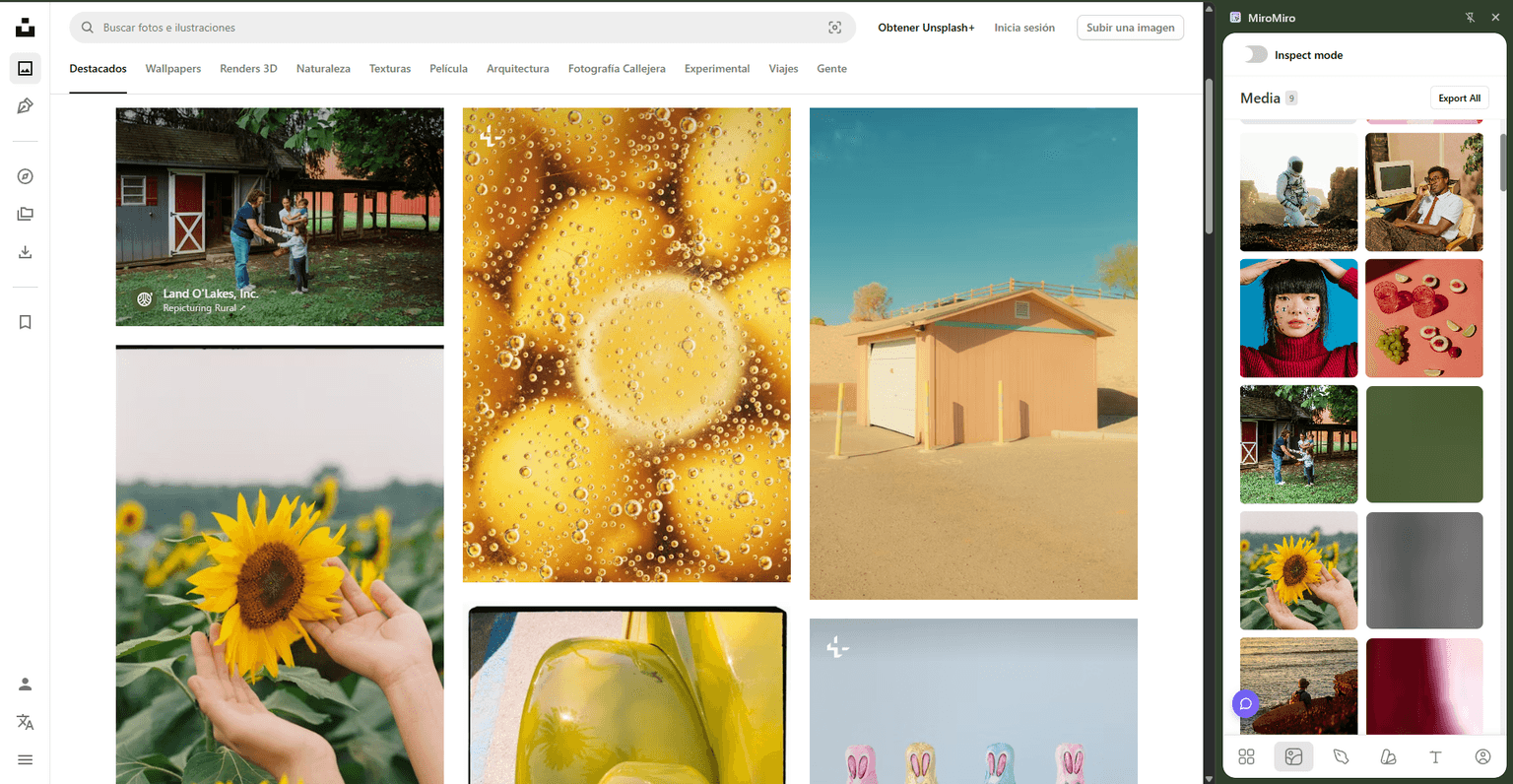
Images & photos
Hover to download any image-including CSS background images that aren't right-clickable.
Design tokens
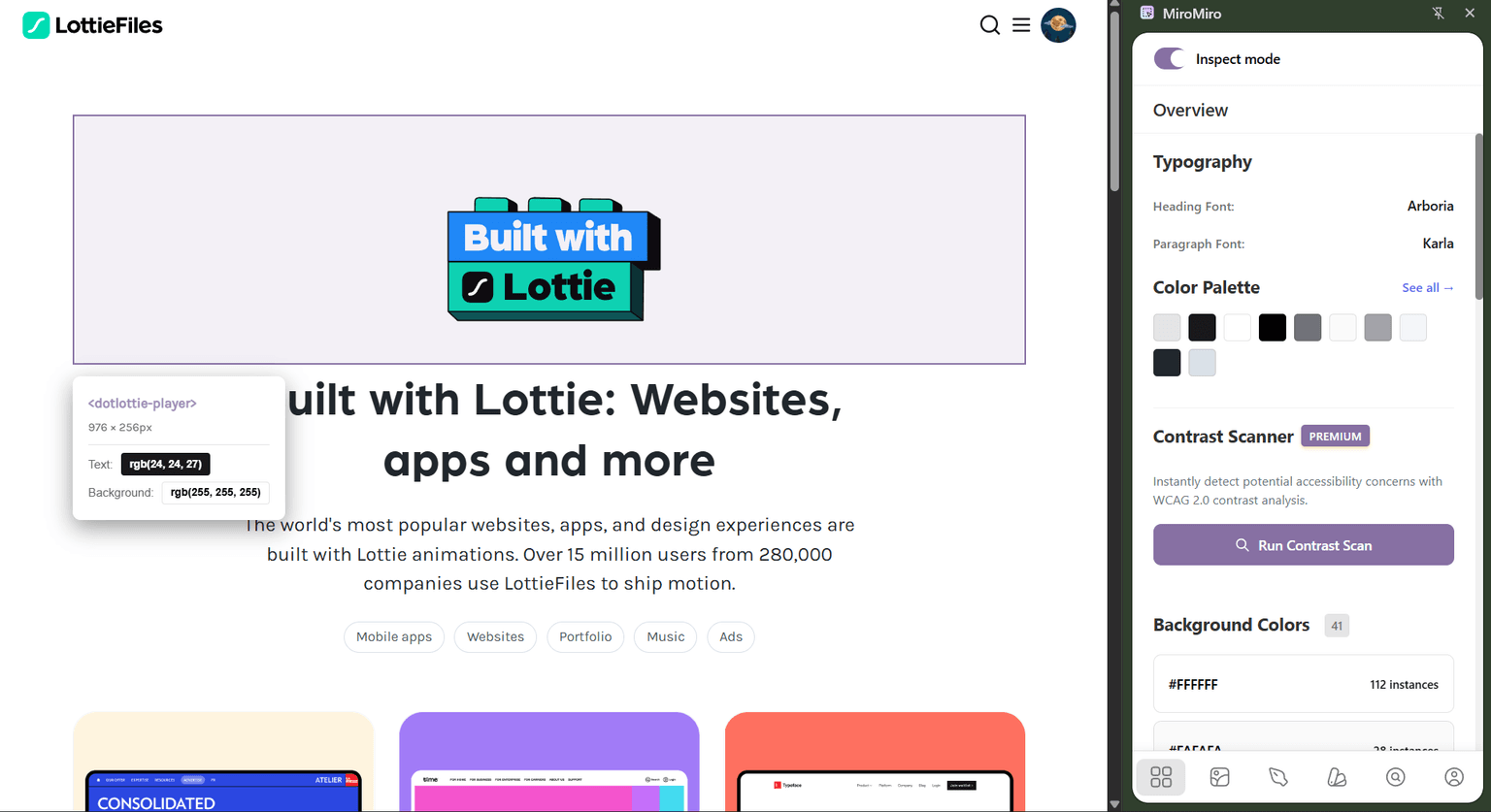
Extract the full design system (colors, typography, spacing, border radius, shadows) from any URL and export as JSON, CSS variables, or Tailwind config.
Lottie animations
Detect and download Lottie JSON files from pages that use motion graphics.
All from the same extension, no switching between tools.
Conclusion: Skip the DevTools SVG Hunt
If you spend any time collecting SVG icons, logos, or illustrations from websites, the DevTools workflow is a time sink you don't have to accept.
The faster path:
- ✅ Hover over any SVG on any website
- ✅ Copy with one click - clean, Figma-ready markup
- ✅ Paste into Figma as editable vectors instantly
- ✅ No DevTools, no file saving, no import step
Try it free:
Questions? Reach out on Twitter or explore our other design tools.
Keep Reading
- How to Download Images from Any Website: Extract all visual assets, not just SVGs
- SVG Extractor: Find and download all SVGs from any website
- Asset Extractor: Bulk download images, SVGs, videos, and Lottie animations
- Color Palette Extractor: Extract brand colors alongside your SVGs
¿Listo para acelerar tu flujo de trabajo?
Únete a más de 8.000 diseñadores y desarrolladores que ahorran horas cada semana con MiroMiro.
Añadir a Chrome